Lost game saves are always disappointing. One second you just won a difficult fight, which you struggled with for days before, and suddenly your console shuts down unexpectedly. Before you even realize what happened, you understand that when you turn on your console, nothing can be found. Everything you gained through this long session – everything is gone. It is a feeling every gamer knows very well.
However, game saves might still be restored. In most situations, game saves were either hidden somewhere inside your console or were damaged due to malfunctions. If you feel you are prepared to put in the necessary effort and time, then you can definitely restore any lost game saves. In the paragraphs that follow, you will be provided with all information regarding how to restore lost game saves and prevent their loss in the future.
Let’s dig in.
Understanding Game Saves and System Crashes
The saves work in a manner similar to the bookmarks in a book, whereby the player will be able to continue from where he or she had stopped, since the saves store all the data about the progress made, including things like the levels attained, items gathered, quests completed, and much more, so that at any given point, when the player wishes to play, everything is right where it is supposed to be.
Saved files can be found in two locations mostly. First, saved files can be found locally inside the device itself. That is within the computer’s folders such as Documents, AppData, or even within the folder of the particular game. Second, cloud saves are a feature offered by various gaming platforms. Some of the most popular platforms include Steam, Xbox, and PlayStation; all these have cloud save capabilities.
Crashes refer to any unexpected freeze, shut-down, and rebooting of the device itself. This can occur as a result of an error in the program itself, lack of power, faults within the computer, a corrupted hard drive, or overheating from using the device in hot temperatures.
If crashing happens when a game is saving a file, there will definitely be corruption within that file. In essence, a crash is like yanking the pen from someone who is writing something down; it results in a spoiled page or something incomplete. Modern games have backup systems within them, but not all of them do.
First Things to Try When Saves Go Missing
The vast majority of the time, you can find the save file somewhere on the very computer or gadget you play the game on.
Inspect your folders locally, since there is always a chance that the game developer has decided to hide their saves elsewhere. It often happens that save files are stored in such places like My Games/Document folder, AppData (local and roaming) and in the folder with the .exe file of the game. How do you determine that? Well, if you see that the name of the file sounds pretty confusing, then you guessed it.
The next logical step is to check whether you have a cloud save or not. What it means is that maybe, when playing the game, you accidentally uploaded your save file to the cloud storage provided by such gaming services as Steam, Epic Games Store, Xbox or PlayStation.
Finally, consider checking out community forums where experienced players discuss various issues related to their games. The Internet is awash with passionate gamers who will share tips and tricks about retrieving their lost save files, sometimes even going above and beyond what the developers themselves offer in terms of official support.
If these methods fail, data recovery software becomes your best option.
Getting Your Saves Back with Data Recovery Software
Data recovery software can be viewed as a search party for your missing files. This means that they check the sectors of your HDD/SSD which are not available to the OS and search for data pieces in order to assemble them into something that can be used. Your particular case would be best served by Stellar Data Recovery Professional since this software is created especially for such instances.
Here are some recommendations which should help you complete the process effectively:
- Firstly, don’t install the software on the same disk where your game was saved. If your game files are placed on your C: drive, place the software anywhere but there.
- Run the software, pick the appropriate drive to restore data from.
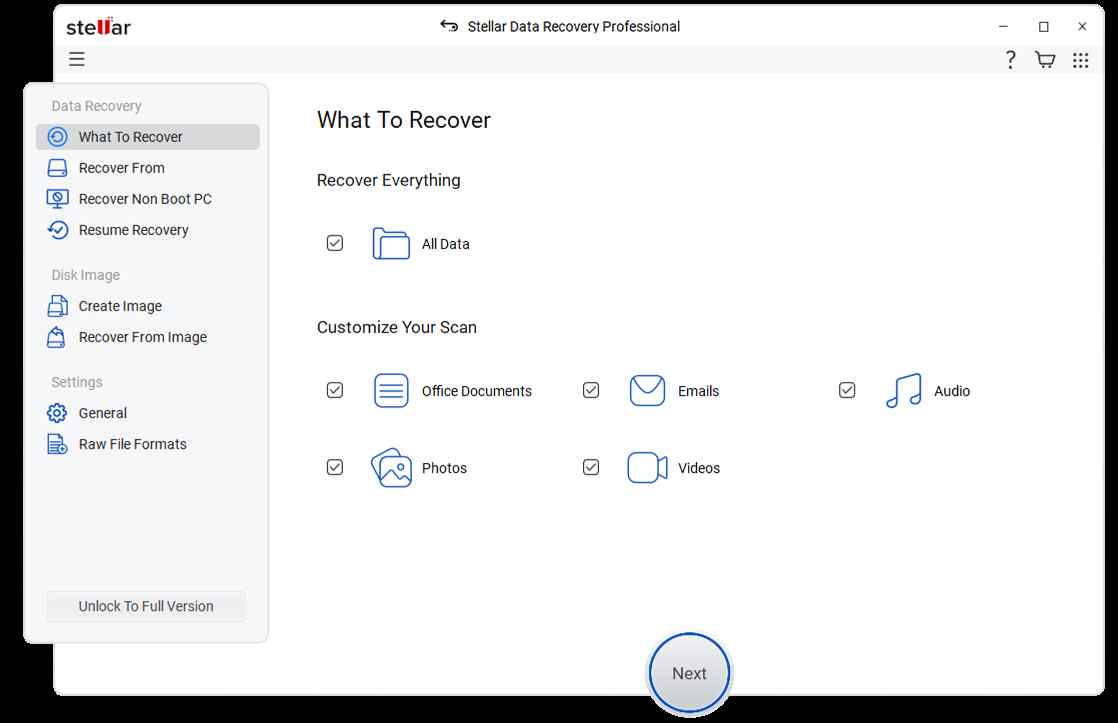
- After that, pick the required file types to recover.
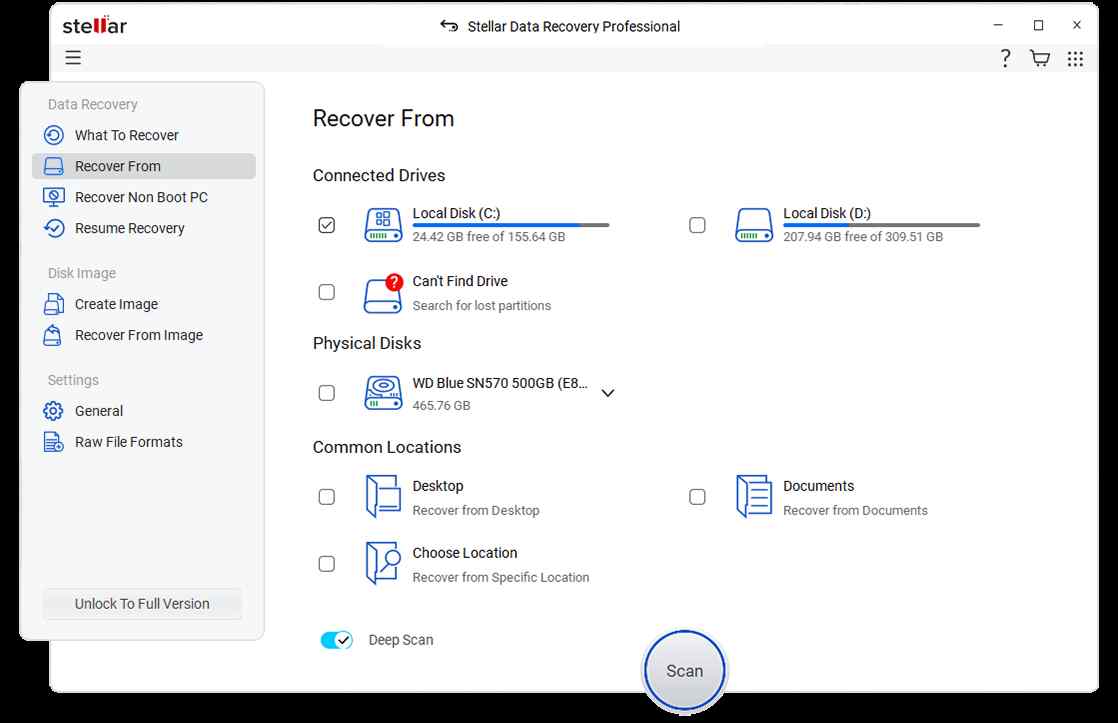
- Scan the drive. Start with a quick scan to see which results you get. In case you do not manage to find your files with the quick scan, opt for a deep scan that will take longer but will cover more territory on your hard drive.
- Look through the list thoroughly. Pay attention to the folders with names matching those of your game or the publisher of this game. The save files usually have such extensions as .sav, .save, .dat, or something unique for the respective title.
- Preview before you recover. This way you will make sure you download the proper progress data and not just some other stuff.

- Do not restore files to the original location. It is crucial that you do not download the files immediately to the original disk. Instead, keep them on another drive or in another folder temporarily.
- Import files into the game. Copy the files in the required save directory, launch the program, and hope for the best. Provided everything goes smoothly, your progress will be waiting for you in the game.
When to Call in Professional Recovery Help
But sometimes, events might change their direction and become more serious than software can handle alone. If there is clicking from your hard drive, your computer cannot start up, or the program only shows a bunch of gibberish, then there is something seriously wrong with your hardware or your files are severely corrupted.
In such cases, it is always wise to consider the services of reputable data recovery agencies. Such companies possess clean rooms among other sophisticated facilities capable of recovering information stored on damaged hard disks. Their approaches are far beyond anything possible using software.
It is best to choose a company with good reputation and defined charges. Of course, it won’t come cheap but after investing a lot of time in building the save file that cannot be recreated again, the cost would become reasonable to bear. The most important thing is to ensure that you choose professionals skilled in handling gaming files.
Simple Ways to Stop Future Crashes
Restoring corrupted saves is extremely frustrating. The better solution would be never allowing the problem to occur in the first place, and no advanced technical skills are needed for that.
- Make sure that your operating system and other software components receive regular updates. That’s why those update reminders pop up on a regular basis – they fix bugs that affect performance and stability.
- Leave space for breathing room on your disks. The more space you fill on your hard drive, the less performance you’ll be able to squeeze out of your system. Ideally, there should be no less than fifteen to twenty percent of your storage available.
- Get a reliable anti-virus package installed. There’s nothing like malware to ruin a file by digging into system folders. It’s best to perform routine scans to catch possible infections in time.
- Hook up to a surge protector. An abrupt voltage spike might just as well damage your computer irreparably and destroy its files in the process. Surge protectors are cheap insurance.
- Keep it cool. Regular dust cleaning, proper fans’ performance, and, if gaming on a notebook, cooling pads are essential to avoiding overheating problems.
Other Tricks to Try
Even if the conventional approach fails, you may still have some cards up your sleeve.
- A number of cloud systems maintain multiple instances of your save file. With Steam, for instance, you can always use its cloud storage system and restore any previous version of your saved game if something happens to the current one.
- Another option is to perform another scan using data recovery programs and varying the search criteria. You might need to change the filters for file types or scan the bare disk surface, finding some pieces of information you didn’t find before.
- Community groups devoted to particular games can also be of great assistance because gamers who played, for example, Dark Souls, Skyrim, and other similar titles know how to create backups manually.
- Lastly, contact the developers by e-mail and see whether they will help you restore your save file. Your progress might be saved on the server even if the local version is damaged.
Why Regular Backup of Game Saves Is Important
Ask any gamer who has ever had their one-hundred-hour save deleted; nothing is as heartbreaking as that moment. Hours and hours spent grinding, exploring, and crafting – gone in one swift movement. The way to protect yourself from losing your save files is to back them up religiously.
Most modern games now have cloud saving enabled by default, but check to make sure it’s enabled across all launchers, and then do a quick test to see if it’s working. On top of that, keep a weekly backup of your save folders on an external hard drive or USB memory stick – easy to do and takes five minutes.
It’s like having an extra key to your home; you hope you never have to use it, but when that day comes, you’ll be glad you took precautions.
Conclusion
If losing game saves due to system crashes makes you think that this is the end of the world, then rest assured that most often it is not. Most of the time, all that needs to be done for saving the files is to use the proper tools.
In the first place, you need to see whether there are backups of these files present either in your computer or even in the cloud storage services. Should that not be the case, then perhaps a good data recovery software can come in handy when scanning the hard disk. In case of hardware damage, professional help should be sought. And one thing to remember all the time is that “Prevention is better than cure”!
Back up the data, maintain the system, and value these save files like trophies!